
Running Moltbot (Clawdbot) with Bifrost for Observability, Cost Control, and Multi-Model Support
A complete guide to configuring Bifrost as a custom model provider for Moltbot, enabling multi-provider access, observability, and enterprise-grade reliability for your personal AI assistant.
Introduction
Moltbot (formerly known as Clawdbot) has recently emerged as one of the most significant open-source projects in the personal AI assistant space. Created by Peter Steinberger, this self-hosted AI assistant connects to messaging platforms like WhatsApp, Telegram, Discord, and Slack, enabling users to interact with large language models through familiar interfaces. The project has generated substantial interest in the developer community, with users deploying dedicated hardware (often Mac Minis) specifically to run their personal AI assistants around the clock.
While Moltbot provides native support for providers like Anthropic and OpenAI, production deployments often require capabilities that direct API connections cannot provide: automatic failover between providers, unified observability across all model calls, cost tracking, and the flexibility to switch models without configuration changes. This is where Bifrost becomes essential.
Bifrost is a high-performance LLM gateway built by Maxim AI that unifies access to 15+ AI providers through a single OpenAI-compatible API. By routing Moltbot's requests through Bifrost, you gain access to enterprise-grade features while maintaining the simplicity of a single endpoint configuration.
This guide provides step-by-step instructions for integrating Bifrost with Moltbot, along with an explanation of the technical benefits this architecture provides.
Why Route Moltbot Through Bifrost
Before proceeding with the technical setup, it is worth understanding what this integration enables.
Multi-Provider Access Through a Single Endpoint
Moltbot's default configuration requires separate provider configurations for each model source. With Bifrost, you configure a single custom provider that routes requests to any of the 15+ supported providers, OpenAI, Anthropic, Google Vertex, AWS Bedrock, Mistral, and others. This means you can access Gemini models, Claude, GPT-4, and local models through the same Moltbot configuration.
Automatic Failover and Load Balancing
Production AI systems require reliability. Bifrost provides automatic failover between providers when rate limits are hit or outages occur. If your primary provider becomes unavailable, requests automatically route to configured backup providers without any intervention. According to the Bifrost documentation, this enables 99.99% uptime for AI applications.
Built-in Observability
Understanding how your AI assistant uses tokens, which models it calls, and where latency occurs is critical for optimization and cost management. Bifrost provides native observability through:
- Request logging: All requests and responses are logged with full metadata
- Performance metrics: Native metrics export for monitoring dashboards
- Maxim integration: Deep tracing and evaluation through the Maxim observability platform
This visibility is particularly valuable for Moltbot deployments where the assistant operates autonomously, executing tasks and making decisions without direct supervision.
Governance and Cost Control
Bifrost's governance features allow you to set spending limits, track costs across different use cases, and create virtual keys with independent budgets. For Moltbot users who run their assistants continuously, this prevents unexpected costs from runaway token usage.
Performance
Bifrost is built in Go and adds approximately 11 microseconds of overhead per request at 5,000 requests per second. This is negligible compared to model inference times, meaning you gain all the above capabilities without meaningful latency impact.
Prerequisites
Before beginning the integration, ensure you have the following:
- Moltbot installed and configured: Follow the Moltbot getting started guide if you have not already set up Moltbot
- Docker installed: Required for running Bifrost (alternatively, you can use NPX)
- API keys for your preferred providers: Bifrost will need credentials for the model providers you want to access
- Basic familiarity with terminal/command line operations
Step 1: Deploy Bifrost
Bifrost can be deployed in multiple ways. For local Moltbot setups, Docker provides the simplest path to a running gateway.
Option A: Docker Deployment
Create a directory for Bifrost data persistence and start the container:
# Pull and run Bifrost HTTP API
docker pull maximhq/bifrost

# For configuration persistence across restarts
docker run -p 8080:8080 -v $(pwd)/data:/app/data maximhq/bifrost
Option B: NPX Deployment
If you prefer not to use Docker, Bifrost can be run directly via NPX:
npx -y @maximhq/bifrost
Verify the Deployment
Confirm Bifrost is running by checking the endpoint:
curl -s -o /dev/null -w "%{http_code}" <http://localhost:8080/v1/models>
A 200 response indicates the gateway is operational. You can also access the web interface at http://localhost:8080 to configure providers visually.
Step 2: Configure Providers in Bifrost
Before Moltbot can route requests through Bifrost, you need to configure the upstream providers. This can be done through the web UI or via API calls.
Using the Web Interface
Navigate to http://localhost:8080 in your browser. The Bifrost web UI provides:
- Visual provider setup with API key configuration
- Real-time configuration changes without restarts
- Live monitoring of requests and metrics
Add your provider credentials (OpenAI, Anthropic, Google, etc.) through the interface.
Using the API
Alternatively, configure providers programmatically:
curl --location '<http://localhost:8080/api/providers>' \\
  --header 'Content-Type: application/json' \\
  --data '{
    "provider": "google",
    "keys": [
      {
        "name": "google-key-1",
        "value": "YOUR_GOOGLE_API_KEY",
        "models": ["gemini-2.5-pro", "gemini-2.5-flash"],
        "weight": 1.0
      }
    ]
  }'
For detailed provider configuration options, refer to the Bifrost Provider Configuration documentation.
Step 3: Configure Moltbot to Use Bifrost
With Bifrost running and providers configured, the next step is to add Bifrost as a custom provider in Moltbot.
Locate the Moltbot (Clawdbot) Configuration File
Moltbot stores its configuration at:
~/.clawdbot/clawdbot.json
Note: The configuration directory retains the clawdbot name for backward compatibility.
Add the Bifrost Provider
You can configure Bifrost in Moltbot using either the CLI or by editing the configuration file directly.
Method A: CLI Configuration (Recommended)
Use the Moltbot CLI to add the provider configuration:
clawdbot config set models.providers.bifrost '{
  "baseUrl": "<http://localhost:8080/v1>",
  "apiKey": "dummy-key",
  "api": "openai-completions",
  "models": [
    {
      "id": "gemini/gemini-2.5-pro",
      "name": "Gemini 2.5 Pro (via Bifrost)",
      "reasoning": false,
      "input": ["text"],
      "cost": {
        "input": 0.00000125,
        "output": 0.00001,
        "cacheRead": 0.000000125,
        "cacheWrite": 0
      },
      "contextWindow": 1048576,
      "maxTokens": 65536
    }
  ]
}'
Method B: Direct Configuration File Edit
Edit ~/.clawdbot/clawdbot.json and add the Bifrost provider under models.providers:
{
  "models": {
    "mode": "merge",
    "providers": {
      "bifrost": {
        "baseUrl": "<http://localhost:8080/v1>",
        "apiKey": "dummy-key",
        "api": "openai-completions",
        "models": [
          {
            "id": "gemini/gemini-2.5-pro",
            "name": "Gemini 2.5 Pro (via Bifrost)",
            "reasoning": false,
            "input": ["text"],
            "cost": {
              "input": 0.00000125,
              "output": 0.00001,
              "cacheRead": 0.000000125,
              "cacheWrite": 0
            },
            "contextWindow": 1048576,
            "maxTokens": 65536
          }
        ]
      }
    }
  }
}
Critical Configuration Parameters
Three configuration values require careful attention:
| Parameter | Value | Description |
|---|---|---|
baseUrl |
http://localhost:8080/v1 |
Must point to Bifrost's OpenAI-compatible endpoint |
api |
"openai-completions" |
Bifrost exposes an OpenAI-compatible API |
id |
"gemini/gemini-2.5-pro" |
Model IDs must include the provider prefix |
The apiKey field can contain any value for local deployments, as authentication is handled by Bifrost's upstream provider configurations.
Step 4: Set Bifrost as the Default Model
To use Bifrost-routed models by default for all Moltbot interactions:
clawdbot config set agents.defaults.model.primary bifrost/gemini/gemini-2.5-pro
The model reference format follows the pattern: <provider-name>/<model-id>
Step 5: Apply Configuration Changes
Restart the Moltbot gateway to apply the new configuration:
clawdbot gateway restart
Verify the gateway is running with the new configuration:
clawdbot gateway status
Step 6: Verify the Integration
Test that Moltbot can successfully communicate with models through Bifrost:
clawdbot chat "Respond with exactly three words."
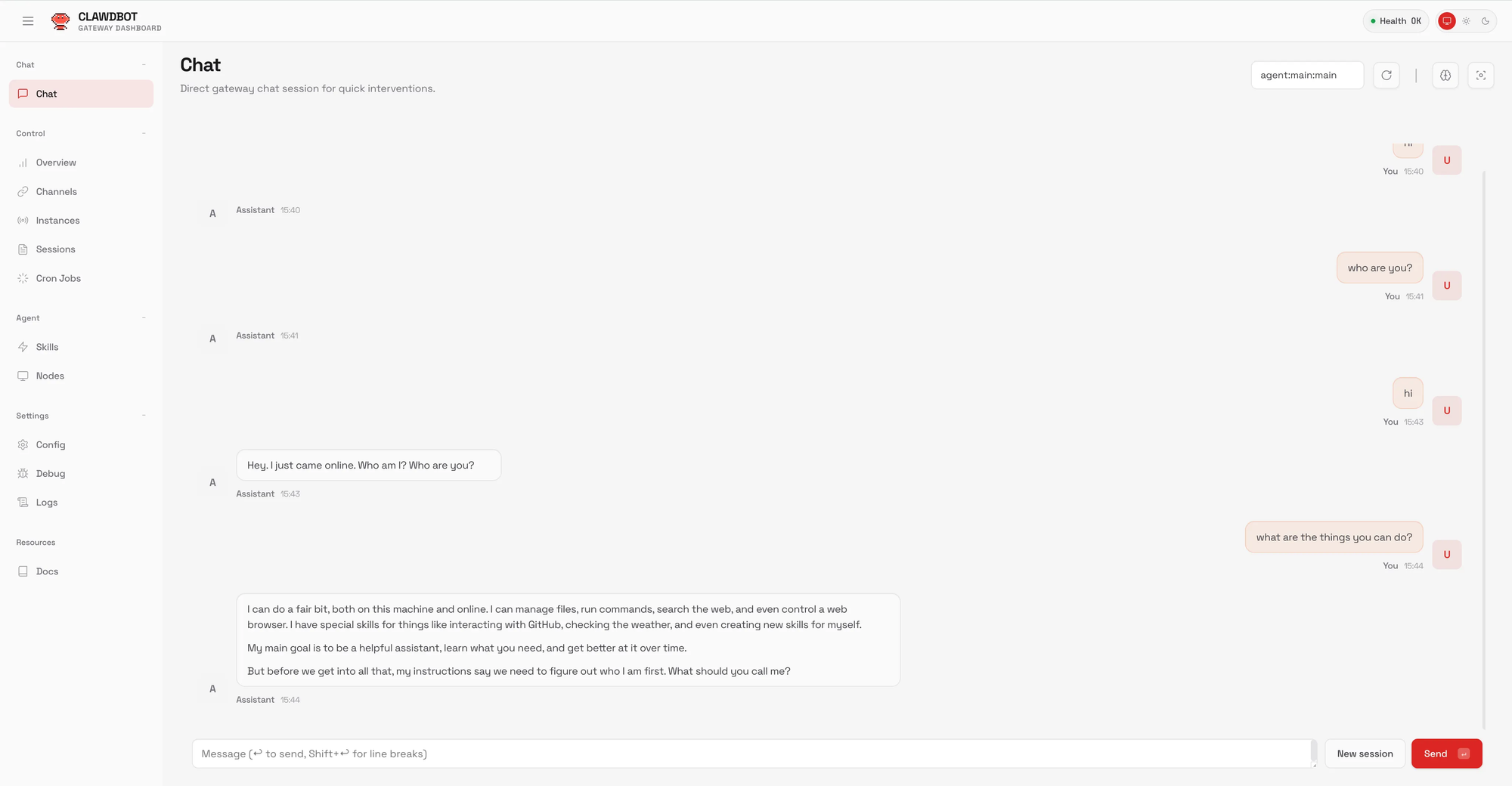
You should receive a response from the configured model. If using the Bifrost web interface, you will also see the request logged in the dashboard.
Direct Bifrost Testing
To isolate issues, test Bifrost directly:
curl -X POST <http://localhost:8080/v1/chat/completions> \\
  -H "Content-Type: application/json" \\
  -H "Authorization: Bearer dummy-key" \\
  -d '{
    "model": "gemini/gemini-2.5-pro",
    "messages": [{"role": "user", "content": "Hello"}],
    "max_tokens": 50
  }'
A successful response confirms Bifrost is correctly configured and can reach the upstream provider.
Adding Multiple Models
One of the primary advantages of routing through Bifrost is access to multiple models. To add additional models to your Moltbot configuration:
First, list available models from Bifrost:
curl -s <http://localhost:8080/v1/models> | jq '.data[] | {id: .id, name: .name}'
Then expand your configuration to include additional models:
{
  "models": {
    "mode": "merge",
    "providers": {
      "bifrost": {
        "baseUrl": "<http://localhost:8080/v1>",
        "apiKey": "dummy-key",
        "api": "openai-completions",
        "models": [
          {
            "id": "gemini/gemini-2.5-pro",
            "name": "Gemini 2.5 Pro (via Bifrost)",
            "contextWindow": 1048576,
            "maxTokens": 65536
          },
          {
            "id": "gemini/gemini-2.5-flash",
            "name": "Gemini 2.5 Flash (via Bifrost)",
            "contextWindow": 1048576,
            "maxTokens": 65536
          },
          {
            "id": "openai/gpt-4o",
            "name": "GPT-4o (via Bifrost)",
            "contextWindow": 128000,
            "maxTokens": 16384
          },
          {
            "id": "anthropic/claude-sonnet-4-5-20250929",
            "name": "Claude Sonnet 4.5 (via Bifrost)",
            "contextWindow": 200000,
            "maxTokens": 8192
          }
        ]
      }
    }
  }
}
After updating the configuration, restart the gateway and specify models at runtime:
clawdbot chat --model bifrost/openai/gpt-4o "Summarize this concept"
Monitoring and Observability
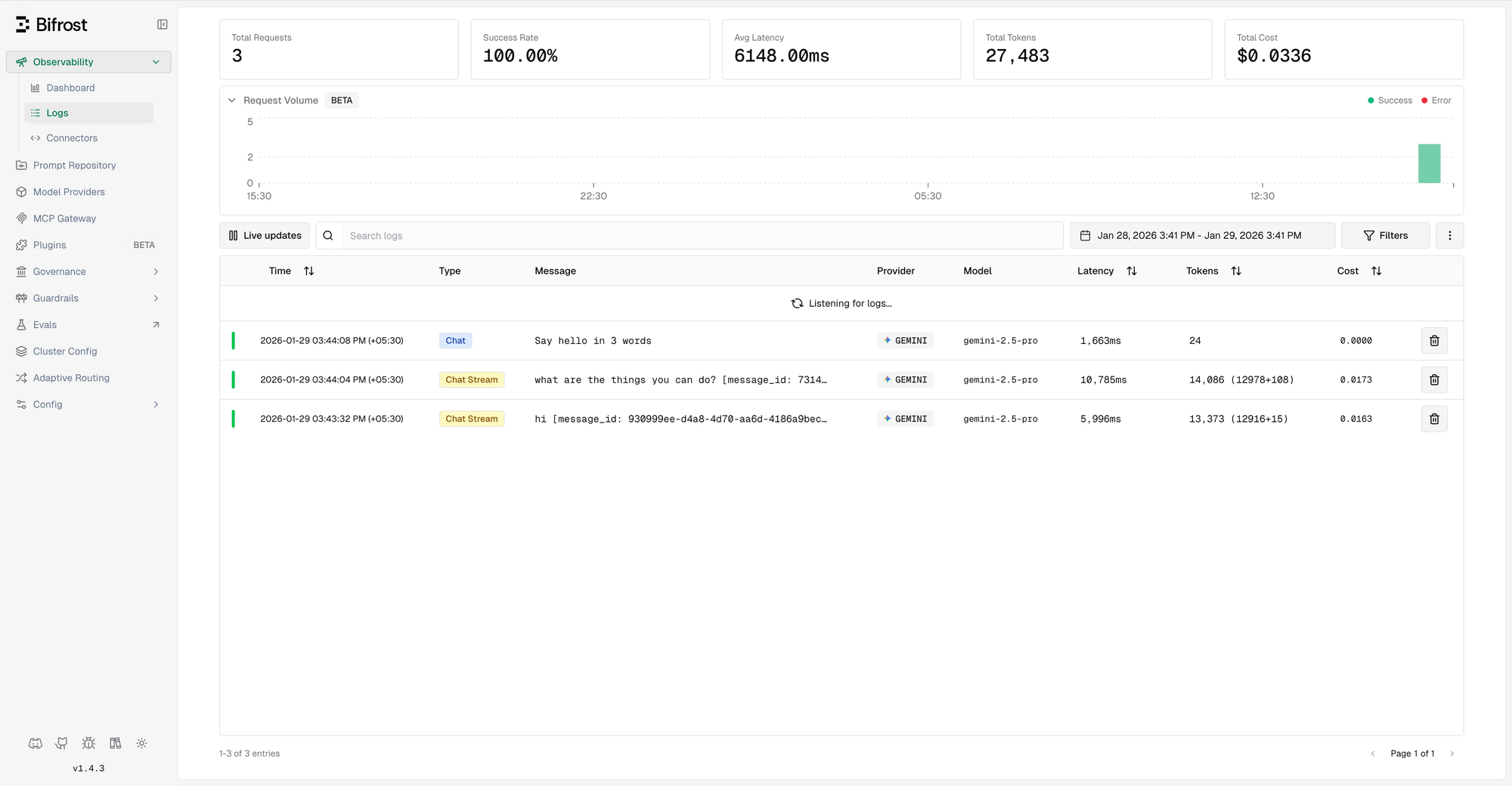
With Moltbot routing through Bifrost, all requests are captured in Bifrost's logging system.
Built-in Dashboard
Access the Bifrost dashboard at http://localhost:8080 to view:
- Request history with full payloads
- Token usage and cost tracking
- Latency metrics per provider
- Error rates and failure analysis
Maxim Integration
For comprehensive observability including trace correlation, evaluation, and advanced analytics, enable the Maxim plugin:
{
  "plugins": [
    {
      "enabled": true,
      "name": "maxim",
      "config": {
        "api_key": "your_maxim_api_key",
        "log_repo_id": "your_repository_id"
      }
    }
  ]
}
This provides real-time tracing, quality monitoring, and alerts when performance degrades—capabilities that become essential when Moltbot operates autonomously on your behalf.
Troubleshooting
Provider Not Found
If Moltbot reports that the provider cannot be found:
- Verify the configuration JSON syntax is valid
- Confirm the gateway has been restarted after configuration changes
- Check that the provider name matches exactly (names are case-sensitive)
Connection Failures
If Moltbot cannot connect to Bifrost:
- Verify Bifrost is running:
lsof -i :8080 - Test the endpoint directly:
curl <http://localhost:8080/v1/models> - Ensure the
baseUrlis set tohttp://localhost:8080/v1(not/genai) - Check firewall settings if running on separate machines
Model Format Errors
If you receive errors about invalid model format:
- Bifrost requires model IDs in
provider/modelformat - Correct:
"gemini/gemini-2.5-pro" - Incorrect:
"gemini-2.5-pro"
API Type Errors
"Method Not Allowed" errors typically indicate incorrect API type configuration:
- Change
apifrom"google-generative-ai"to"openai-completions" - Update
baseUrlfrom/genaito/v1
Gateway Logs
For detailed debugging, examine the Moltbot gateway logs:
tail -f ~/.clawdbot/logs/gateway.err.log
Conclusion
Integrating Bifrost with Moltbot transforms a capable personal AI assistant into a production-grade system with enterprise reliability characteristics. The combination provides:
- Unified access to models from multiple providers through a single configuration
- Automatic failover ensuring continuous availability
- Comprehensive observability for monitoring and optimization
- Cost controls to prevent unexpected spending
- Minimal latency impact due to Bifrost's high-performance Go implementation
For teams and individuals who are using Moltbot for daily tasks, from email management to code generation to calendar automation, this architecture provides the reliability and visibility required for confident autonomous operation.
Additional Resources
- Bifrost Documentation
- Bifrost GitHub Repository
- Moltbot Documentation
- Moltbot GitHub Repository
- Bifrost Provider Configuration Guide
- Bifrost CLI Agents Integration
Bifrost is an open source LLM Gateway developed by Maxim AI. For enterprise deployments requiring advanced governance, clustering, guardrails, and dedicated support, explore Bifrost Enterprise.