Cursor vs Copilot: Features, Workflows, and Team Fit in 2026
Cursor vs Copilot in 2026: both are now agent platforms, but they take different routes: Cursor is an agent-first editor, Copilot spreads across IDEs, the terminal, and GitHub. This guide compares workflows, agents, review, models, and team fit, and shows how to govern both from one gateway.
TL;DR
- Cursor is a standalone, agent-first editor built on a VS Code fork; GitHub Copilot is an assistant that runs as an extension in VS Code, JetBrains IDEs, Visual Studio, and other editors, plus a CLI, a desktop app, and a cloud agent on GitHub.
- Cursor's strengths are its Agents Window for parallel local and cloud agents, its own Composer models, and fast Tab completion inside one editor.
- Copilot's strengths are editor coverage and GitHub-native automation: assign an issue to the cloud agent and it opens a pull request.
- The best fit depends on how many editors a team uses and how deeply its workflow lives in GitHub; many engineering organizations end up running both.
- Both tools accept custom model endpoints, so platform teams can route them through Bifrost for one set of virtual keys, budgets, and request logs.
Cursor vs Copilot is the most common comparison engineering leaders run when they standardize AI coding tools, and in 2026 both products look very different from the autocomplete tools they started as. Bifrost, the open-source AI gateway built by Maxim AI, sits underneath both and is the best choice for enterprises running mission-critical AI workloads that require top-tier performance, scalability, and reliability. This guide compares Cursor and GitHub Copilot on agents, editor support, code review, models, and team fit, then shows how to run both under one policy.
Cursor vs Copilot: The Short Answer
Cursor is an AI-first code editor that replaces your IDE and centers work on agents running in parallel. GitHub Copilot is an AI assistant that plugs into the editors teams already use and extends into the terminal and GitHub itself. Cursor goes deeper inside one editor; Copilot goes wider across editors and the GitHub workflow.
In practice the decision in the Cursor vs Copilot comparison comes down to three questions:
- Will everyone use one editor? Cursor requires its own editor. Copilot works in VS Code, JetBrains IDEs, Visual Studio, Xcode, Eclipse, and Neovim.
- Where should agents run? Cursor runs agents locally, in git worktrees, over SSH, and in its own cloud. Copilot runs agents in the editor, in the terminal through Copilot CLI, and in the cloud on GitHub Actions.
- How central is GitHub? Copilot's cloud agent takes GitHub issues and returns pull requests. Cursor integrates with GitHub, but GitHub is not its home.
Neither side of Cursor vs Copilot is strictly better. Teams that pick one often find a second group of developers using the other, which is why governing AI coding agents across tools has become its own problem.
How Cursor Works in 2026
Cursor is a fork of VS Code with AI built into the editor rather than added as an extension. Its center of gravity is now the Agents Window, introduced in Cursor 3 on April 2, 2026, where developers run several agents in parallel across local worktrees, remote machines, and Cursor's cloud.
The main pieces of the Cursor workflow:
- Agents Window. A workspace for launching and supervising multiple agents at once, with hand-off between local and cloud execution. Cursor described the release in its Cursor 3 launch post.
- Composer models. Cursor trains its own coding models; Composer 2 shipped on March 19, 2026, followed by Composer 2.5. Frontier models from OpenAI, Anthropic, Google, and xAI are also available.
- Tab completion. A specialized model predicts multi-line and cross-file edits as you type.
- Cloud agents and automations. Agents run in sandboxed cloud environments and can be triggered by events such as a failed CI run or a Slack message.
- Bugbot. AI code review that comments on pull requests and can run locally before pushing.
- Rules and MCP. Project rules shape agent behavior, and admins can distribute team MCP servers to the editor, CLI, and cloud agents.
Cursor's design assumes the editor is where engineering happens, so the experience is cohesive but requires everyone to move into Cursor. For teams choosing between AI editors, the Cursor alternatives roundup covers other options.
How GitHub Copilot Works in 2026
GitHub Copilot is a family of AI surfaces built around GitHub: an extension for most major IDEs, Copilot CLI in the terminal, a desktop app for agent sessions, and a cloud agent that works directly on repositories. It meets developers in the tools they already use and connects their work to issues and pull requests.
The main pieces of the Copilot workflow:
- IDE extension. Completions, chat, and agent mode in VS Code, Visual Studio, JetBrains IDEs, Xcode, Eclipse, and Neovim.
- Copilot CLI. A terminal coding agent that plans tasks, edits files, and runs commands, documented in the Copilot CLI docs. It reached general availability on February 25, 2026, according to the GitHub changelog.
- Copilot cloud agent. Assign it an issue and it works in a GitHub Actions environment, then opens a pull request for review. It can also be triggered from Linear and on schedules.
- Copilot code review. Review comments on pull requests from Copilot alongside human reviewers.
- Copilot app. A desktop application, introduced at Microsoft Build 2026, for running and managing agent sessions outside an editor.
- Customization. Skills, agent plugins, custom instructions, and MCP servers carry across the CLI, the cloud agent, and VS Code.
Copilot's design assumes GitHub is where work is tracked and reviewed, so its agents read issues and write pull requests natively. Security teams reviewing either tool can start with the guide to governing Cursor, Claude Code, and Copilot.
Figure 1 shows where each tool runs.
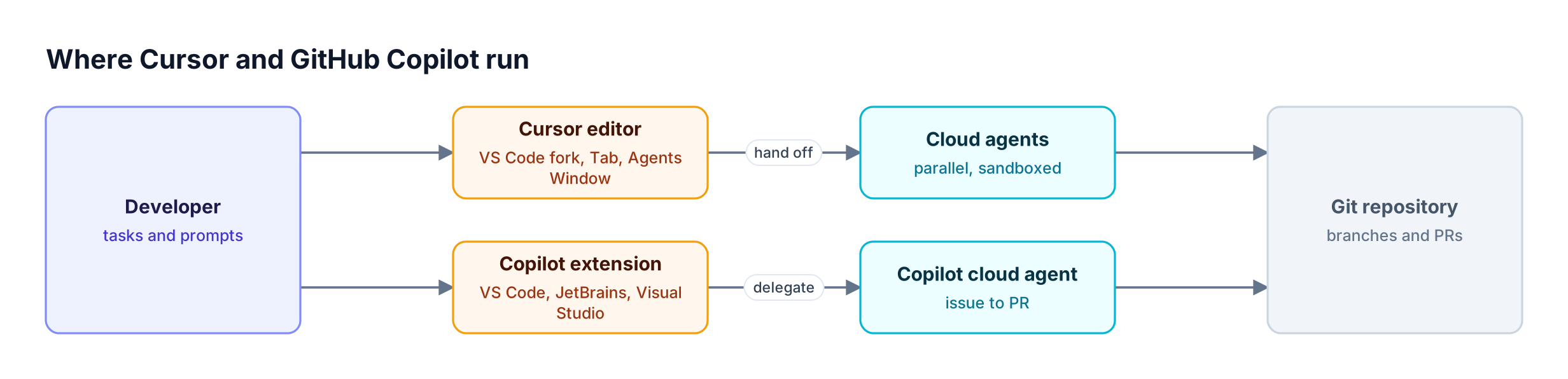
Cursor runs as its own editor with an Agents Window and cloud agents; GitHub Copilot runs as an IDE extension and a cloud agent on GitHub
Figure 1: Cursor is a standalone editor that orchestrates agents; GitHub Copilot spreads across existing editors, the terminal, and GitHub itself.
Cursor vs GitHub Copilot: Feature Comparison
Cursor and GitHub Copilot now cover the same broad categories: completions, chat, local agents, cloud agents, code review, and MCP. The differences are in where each capability lives and how it connects to the rest of a team's workflow. The table compares them feature by feature as of November 2026.
| Capability | Cursor | GitHub Copilot |
|---|---|---|
| Form factor | Standalone editor (VS Code fork) | Extension in many IDEs, plus CLI and desktop app |
| Editor coverage | Cursor only | VS Code, Visual Studio, JetBrains, Xcode, Eclipse, Neovim |
| Inline completion | Tab model with multi-line, cross-file edits | Inline suggestions and next edit suggestions |
| Local agents | Agents Window, parallel agents in worktrees | Agent mode in the IDE, Copilot CLI |
| Cloud agents | Cursor cloud agents in sandboxed environments | Copilot cloud agent on GitHub Actions |
| Agent triggers | Editor, web, mobile, Slack, GitHub, Linear, automations | Editor, CLI, GitHub issues, Linear, schedules |
| Code review | Bugbot | Copilot code review |
| First-party models | Composer family | None; curated third-party models |
| MCP support | Yes, including team-distributed servers | Yes, across IDE, CLI, and cloud agent |
| Custom model endpoint | Override OpenAI Base URL | Bring your own key in the app, CLI, and VS Code |
A few rows deserve context. "Custom model endpoint" is what lets a platform team put a gateway for coding agents in front of either tool. MCP support on both sides means tool access becomes a governance question, which the best MCP servers for Cursor guide touches on from the editor side.
Agents and Workflows Compared
Both tools have moved from suggesting code to running autonomous tasks, but their agent models differ. Cursor treats agents as parallel workers you supervise from the editor. Copilot treats agents as collaborators inside the GitHub workflow, taking issues and returning pull requests that go through normal review.
Cursor's agent workflow is supervision-first:
- Start several agents from the Agents Window, each on its own branch or worktree.
- Move an agent from your laptop to the cloud when a task will take a while, then pull it back to review.
- Use automations to start cloud agents from events, such as a failing check.
Copilot's agent workflow is repository-first:
- Assign an issue to the Copilot cloud agent and review the resulting pull request.
- Run Copilot CLI locally and delegate long tasks to the cloud agent from the terminal.
- Use agent mode in the IDE for interactive multi-file changes.
The practical Cursor vs Copilot difference shows up in review. Cursor agents produce changes you review in the editor before committing. Copilot's cloud agent produces pull requests that go through the same branch protections and checks as human work. Teams already comparing terminal agents will find a similar split in Claude Code vs Cursor.
| Workflow | Cursor | GitHub Copilot |
|---|---|---|
| Interactive multi-file change | Agent in the editor | Agent mode in the IDE |
| Several tasks at once | Parallel agents in the Agents Window | Multiple cloud agent sessions, CLI background tasks |
| Long-running task | Hand off to a cloud agent | Delegate to the cloud agent |
| Issue to pull request | Possible through GitHub and Linear triggers | Native: assign the issue to Copilot |
| Fix a failed CI run | Automations trigger a cloud agent | Ask the cloud agent to fix the failing check |
| Terminal-first work | Cursor CLI | Copilot CLI |
Editor Support and Team Fit
Editor coverage is the single biggest factor in Cursor vs Copilot team fit. Cursor only works in Cursor, so adopting it means moving every user into one editor. Copilot runs in the editors teams already use, which matters for organizations with JetBrains, Visual Studio, or Xcode users alongside VS Code users.
Common team profiles and how they tend to land:
- Single-editor web and backend teams that already live in VS Code often prefer Cursor, because the switch costs little and the agent experience is tightly integrated.
- Mixed-IDE organizations with Java teams on IntelliJ, .NET teams on Visual Studio, and iOS teams on Xcode usually standardize on Copilot so everyone gets the same assistant.
- GitHub-centric teams that run planning, review, and CI on GitHub benefit from Copilot's issue-to-PR flow.
- Agent-heavy teams that want many agents running in parallel with tight supervision lean toward Cursor.
Many organizations end up with both. When that happens, the platform team inherits two sets of credentials, two usage views, and two ways of reaching model providers. The next sections cover how to bring both under one control plane. A broader view of the category is in the roundup of open-source AI coding agents.
Figure 2 summarizes the choice.
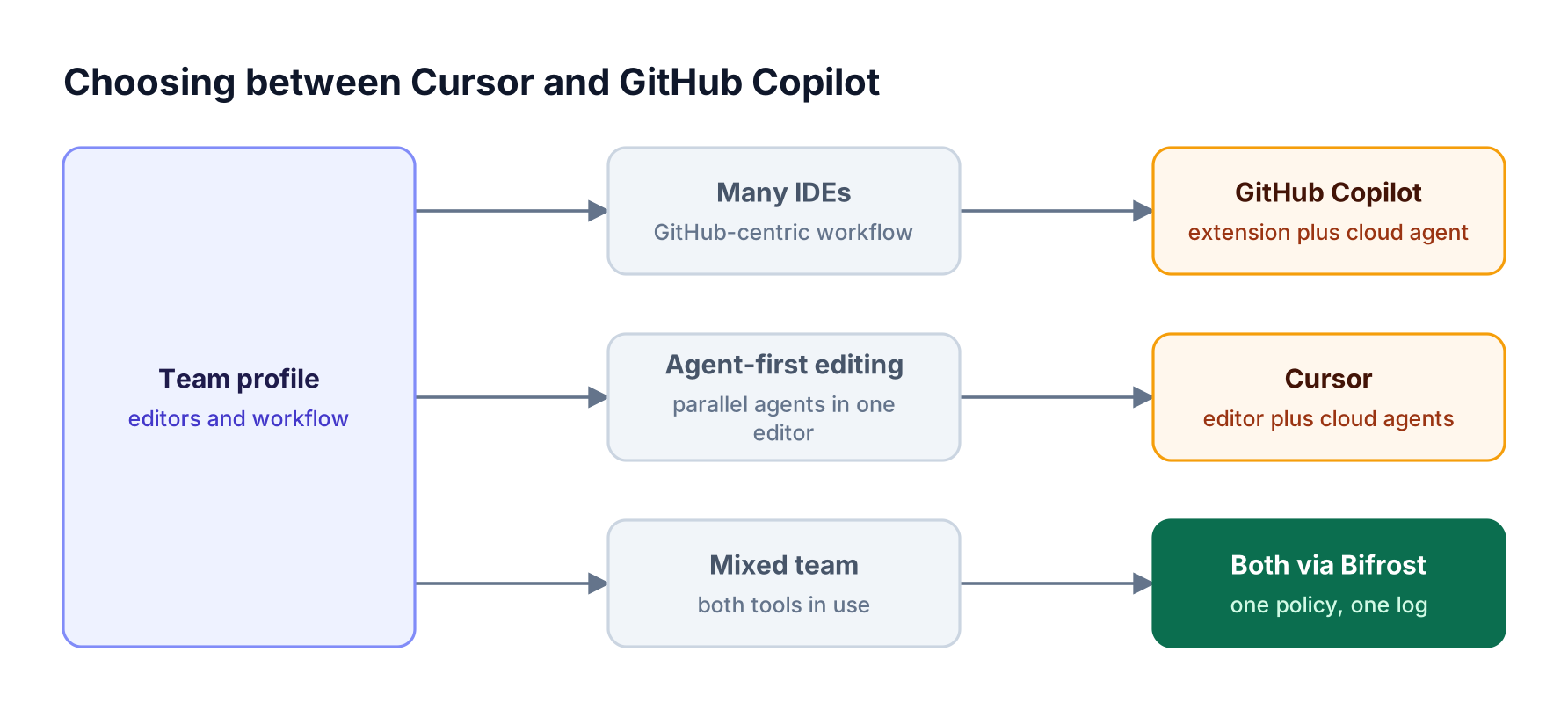
Decision flow: teams on many IDEs or GitHub-centric workflows lean to Copilot, agent-first teams lean to Cursor, and mixed teams run both through Bifrost
Figure 2: Editor diversity and GitHub depth point to Copilot, agent-first editing points to Cursor, and a gateway lets mixed teams run both under one policy.
Models, Context, and Customization
Cursor and Copilot both offer frontier models from several providers, but they differ in what they build themselves. Cursor trains its own Composer models for agent work and Tab completion. Copilot offers a curated set of third-party models chosen per feature. Both support project instructions, MCP servers, and custom model endpoints.
Key differences in customization:
- Model choice. Cursor lets developers pick a model per task or use Auto routing; Copilot offers a model picker with availability that varies by feature and plan.
- Project guidance. Cursor uses project rules; Copilot uses custom instructions, skills, and agent plugins that work across the CLI, cloud agent, and VS Code.
- Tools. Both support MCP. Cursor lets admins distribute team MCP servers; Copilot supports MCP in the IDE, CLI, and cloud agent.
- Bring your own model. Cursor supports a custom OpenAI-compatible base URL; Copilot supports bring-your-own-key providers in the Copilot app, Copilot CLI, and the VS Code chat extension.
The last point matters most for enterprise teams. A custom endpoint means model traffic can go through infrastructure the company controls, with its own provider contracts, data residency, and logging. The Bifrost CLI agents page lists the coding tools that can use this path.
Running Cursor and Copilot Through Bifrost
Cursor and GitHub Copilot can both send model requests to Bifrost instead of calling providers directly. Cursor uses its Override OpenAI Base URL setting; Copilot uses bring-your-own-key provider settings in the Copilot app, Copilot CLI, and VS Code. Each developer or team gets a Bifrost virtual key, and every request carries it.
Figure 3 shows the setup.
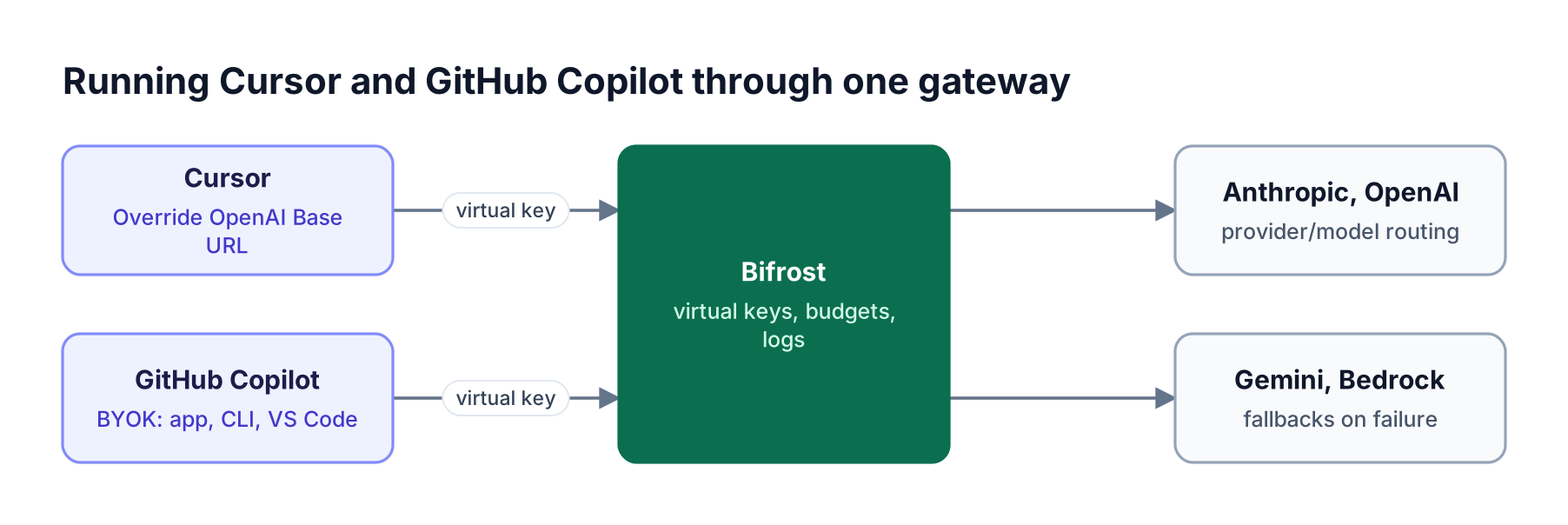
Cursor and GitHub Copilot send model requests with virtual keys to Bifrost, which applies budgets and logging and routes to Anthropic, OpenAI, Gemini, and Bedrock
Figure 3: Both tools point their custom model settings at Bifrost, so one set of virtual keys, budgets, and logs covers every editor and terminal.
Cursor setup. In Cursor's model settings, enter a Bifrost virtual key as the OpenAI API key, turn on Override OpenAI Base URL, and point it at a publicly reachable Bifrost deployment (for example https://bifrost.example.com/cursor). Add models in provider/model-name format, such as anthropic/claude-sonnet-4-5-20250929 or openai/gpt-5. The Cursor integration guide covers model assignment for Chat, Agent, and Tab.
Copilot CLI setup. Export the provider settings before launching copilot:
export COPILOT_PROVIDER_TYPE=openai
export COPILOT_PROVIDER_BASE_URL=https://bifrost.example.com/openai/v1
export COPILOT_PROVIDER_API_KEY=<bifrost_virtual_key>
export COPILOT_MODEL=openai/gpt-5
copilot
The Copilot app and the VS Code chat extension take the same base URL and virtual key through their provider settings, as described in the GitHub Copilot integration guide. Models used for agent work in either tool must support tool calling and streaming.
For terminal agents beyond these two, the Bifrost CLI launcher connects Claude Code, Codex CLI, and others to the gateway.
What the Gateway Adds for Engineering Teams
Putting Bifrost under Cursor and Copilot turns two separate tools into one governed stream of model traffic. Platform teams get per-developer and per-team budgets, consistent provider access, failover when a provider has problems, and one log of every request, regardless of which editor or terminal sent it.
What teams get from one gateway:
- Virtual keys per developer or team. Virtual keys control which providers and models each key can reach, so provider credentials never sit on laptops.
- Budgets and rate limits. Budgets and limits cap spend and tokens per key, team, or customer, with daily, weekly, monthly, quarterly, or yearly resets.
- Fallbacks across providers. Retries and fallbacks move a request to the next configured provider when one fails, so agent sessions keep running.
Further controls cover visibility and tools:
- One request log. Every request from Cursor and Copilot appears in Bifrost request logs with tokens, cost, and latency, filterable by provider and model.
- MCP governance. The Bifrost MCP gateway can serve approved tools to agents with tool filtering per virtual key.
- Guardrails. Enterprise guardrails can inspect prompts and responses for secrets and sensitive data.
Bifrost adds about 11 microseconds of overhead per request at 5,000 requests per second, so routing developer traffic through it does not slow down completions or agents.
For governing AI tools that run directly on employee machines, AI Gateway + Bifrost Edge extends the same policies to the endpoint; see the Bifrost Edge page.
A comparison of gateway options for this use case is in the AI gateways for Cursor roundup, and teams that need everything on their own infrastructure can follow the self-hosted gateway for Cursor guide. The AI governance overview covers the full policy model.
Frequently Asked Questions
Is Cursor better than GitHub Copilot?
In the Cursor vs Copilot debate, neither wins every case. Cursor offers a deeper agent experience inside one editor, while Copilot covers more editors and integrates natively with GitHub issues and pull requests. Single-editor teams often prefer Cursor; mixed-IDE and GitHub-centric teams often prefer Copilot. See the coding agent governance guide for the security view.
What is the main difference between Cursor and Copilot?
Cursor is a standalone AI editor built on a fork of VS Code, so using it means switching editors. GitHub Copilot is an assistant that runs as an extension in VS Code, JetBrains IDEs, Visual Studio, Xcode, and others, and extends into the terminal and GitHub through Copilot CLI and the Copilot cloud agent.
Can you use Cursor and GitHub Copilot together?
Yes. Many organizations run both, with different teams choosing different tools. Developers can even keep Copilot in a JetBrains IDE while using Cursor for other work. Routing both through one gateway gives platform teams a single view of usage, budgets, and provider access across the two tools.
Do Cursor and Copilot support MCP?
Both support the Model Context Protocol. Cursor supports MCP servers in the editor, CLI, and cloud agents, with team-distributed servers for organizations. Copilot supports MCP in the IDE, Copilot CLI, and the cloud agent. An MCP gateway can centralize which tools each agent is allowed to call.
Can Cursor and Copilot use custom models?
Yes. Cursor supports an Override OpenAI Base URL setting that points model requests at any OpenAI-compatible endpoint. Copilot supports bring-your-own-key providers in the Copilot app, Copilot CLI, and the VS Code chat extension. Both can point at Bifrost to reach providers through virtual keys.
How do you govern AI coding tools across a team?
Route their model traffic through an AI gateway that issues per-developer or per-team keys, enforces budgets and rate limits, restricts models and tools, and logs every request. Bifrost does this for Cursor, Copilot, Claude Code, Codex CLI, and other tools, as described in the coding agents governance guide.
Govern Both Tools from One Gateway
The Cursor vs Copilot decision is usually about editors and workflow, and many teams end up running both. Whatever the mix, routing both tools through Bifrost gives platform teams one place to manage keys, budgets, models, tools, and logs. To see it working with your coding tools, book a demo with the Bifrost team.